
Download Chrome Remote Desktop – Free Secure Remote Access Tool for Windows, Mac, Android & iOS
Overview
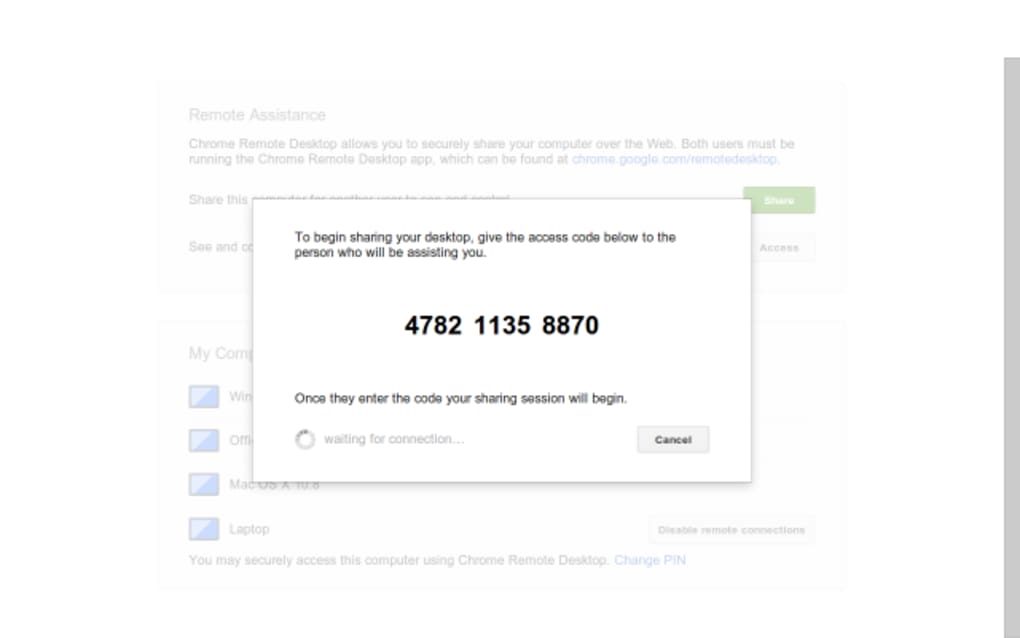
Chrome Remote Desktop is a lightweight, cross‑platform remote‑access solution that lets you control a computer from anywhere using the Chrome browser or the dedicated mobile apps. Designed for both personal use and light‑weight tech support, the service works by installing a small host component on the machine you want to control and a browser‑based client on the device you’re connecting from. Once set up, you can launch a remote session with a PIN or a one‑time code, making it easy to hand over temporary access to a friend, family member, or support technician.
The core philosophy behind Chrome Remote Desktop is simplicity. There are no complex licensing tiers, no recurring subscription fees, and no hidden charges—everything is provided for free by Google. The application runs on Windows 10/11, macOS 10.13+, Linux (via Chrome), as well as Android 5.0+ and iOS 11+. Because it is built into the Chrome ecosystem, updates are delivered automatically through the Chrome Web Store, ensuring you always have the latest security patches and performance improvements.
While Chrome Remote Desktop lacks many of the advanced capabilities found in premium tools such as LogMeIn or TeamViewer (e.g., file transfer, multi‑monitor switching, or remote printing), it excels at providing a reliable, secure connection for everyday tasks like accessing files, troubleshooting software, or giving quick assistance. The service also benefits from Google’s robust authentication system, meaning you can rely on the same two‑factor verification you already use for your Google account.
Key Features
- Cross‑Platform Support: Works on Windows, macOS, Linux, Android, and iOS through the Chrome browser or dedicated mobile apps.
- Free and Secure: No subscription fees; connections are encrypted with TLS and authenticated via your Google account.
- Easy Setup: Guided installation via the Chrome Web Store, with automatic configuration of the host component.
- One‑Time Access Codes: Generate temporary codes for guest users, ideal for ad‑hoc tech support.
- Persistent PIN Access: Set a permanent PIN for recurring remote sessions to your own machines.
- Low Bandwidth Consumption: Optimized for slower connections, ensuring smooth screen rendering even on 3G/4G networks.
- Automatic Updates: Host and client software are kept current through Chrome’s update mechanism.
- System Preference Integration (macOS): After installation, a panel appears in System Preferences for quick access to settings.
Although the feature set is intentionally minimal, each function is built with reliability in mind. The toolbar that appears during a session includes essential controls such as screen scaling, a full‑screen toggle, and two basic keyboard shortcuts for copy‑paste and refresh. While you won’t find advanced session recording or remote printing, the simplicity reduces the attack surface, making Chrome Remote Desktop a surprisingly secure choice for occasional remote work.
Installation, Usage & Compatibility
Step‑by‑Step Installation
- Open the Chrome Web Store and search for “Chrome Remote Desktop”. Click Add to Chrome and confirm the installation.
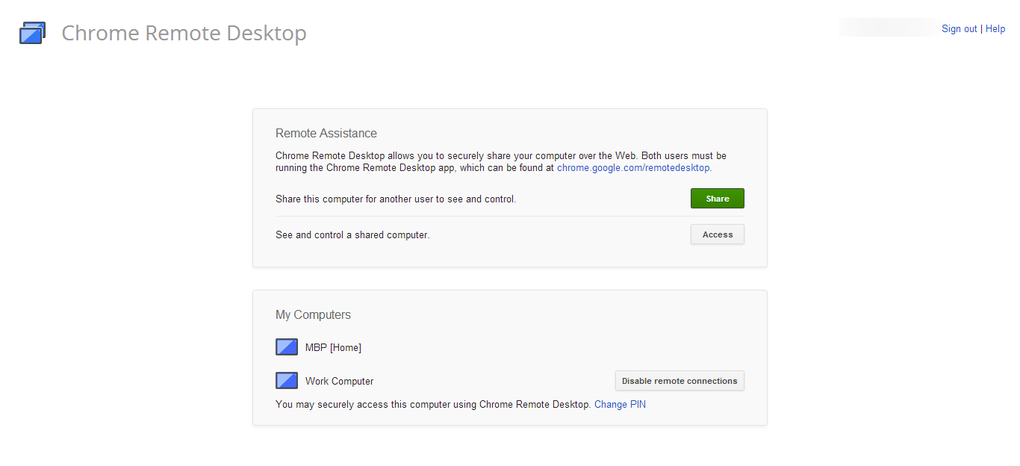
- After the extension is added, launch the app from the Chrome Apps menu or visit remotedesktop.google.com.
- Sign in with your Google account. The service will prompt you to enable remote connections on the host computer.
- Download the small host installer (available for Windows, macOS, and Linux) and run it. Follow the on‑screen wizard to grant the necessary permissions.
- Set a personal PIN (minimum 6 digits) for permanent access, or opt to generate a one‑time code whenever you need to share access.
- On the client side (another computer or mobile device), install the Chrome Remote Desktop app from the Play Store or App Store, sign in with the same Google account, and you’ll see a list of available machines.
- Select the target machine, enter the PIN or one‑time code, and you’re connected.
Operating System Support
Chrome Remote Desktop runs on the following platforms:
- Windows 10, Windows 11 (64‑bit)
- macOS 10.13 High Sierra and later (Intel & Apple Silicon)
- Linux distributions that support Chrome (Debian, Ubuntu, Fedora, etc.)
- Android 5.0 Lollipop and later
- iOS 11 and later
The host component must be installed on a desktop OS (Windows, macOS, or Linux). Mobile devices act only as clients, meaning you can control a PC from a phone, but you cannot host a remote session from a phone.
Using the Tool Effectively
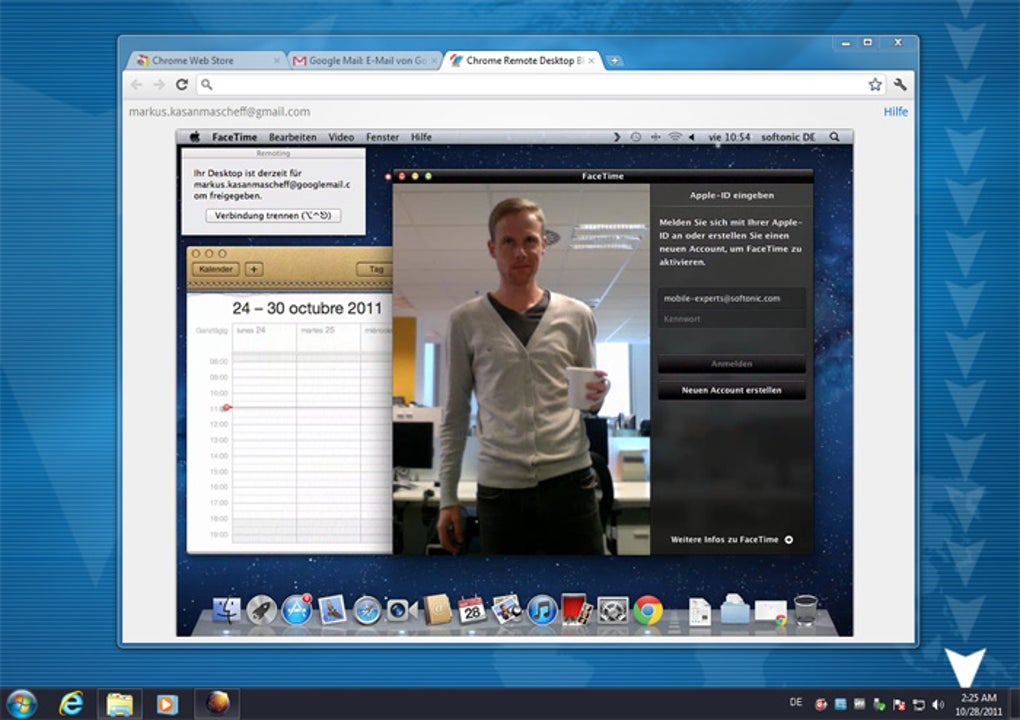
Once connected, the remote session opens in a browser window (or native app on mobile). The top toolbar lets you adjust the display scaling, switch to full‑screen mode, and send a few keyboard shortcuts to the host. For security, the host computer can see a visual indicator that a remote session is active, and you can end the session at any time by closing the window or clicking “Stop sharing”. If you need to hand over control temporarily, simply generate a new one‑time code from the web interface; the code expires after a few minutes, reducing the risk of unwanted access.
Pros, Cons & Frequently Asked Questions
Pros
- Completely free with no hidden fees.
- Strong security backed by Google’s authentication and TLS encryption.
- Easy, guided setup that works for non‑technical users.
- Works on virtually every major operating system.
- Low bandwidth usage makes it viable on slower connections.
Cons
- Lacks advanced features such as file transfer, remote printing, and multi‑monitor selection.
- No built‑in session recording or screenshot tools.
- The toolbar is minimal, offering only basic screen adjustments and two keyboard shortcuts.
- One‑time access codes must be manually generated for each support session, which can feel cumbersome.
- Host must be a desktop OS; mobile devices cannot act as hosts.
FAQ
Is Chrome Remote Desktop safe for personal use?
Yes. Connections are encrypted with TLS, and access is controlled by your Google account credentials and a PIN or one‑time code. Google also provides two‑factor authentication for added protection.
Can I transfer files between the local and remote computer?
File transfer is not a native feature of Chrome Remote Desktop. You would need to use an alternative method such as cloud storage (Google Drive, Dropbox) or a separate file‑transfer tool.
What bandwidth is required for a smooth experience?
Chrome Remote Desktop is optimized for low bandwidth and can work on connections as slow as 1 Mbps. For high‑resolution displays or fast video playback, a faster connection (5 Mbps or higher) provides a smoother experience.
Can I use Chrome Remote Desktop on a Linux machine?
Yes. Linux users can install the host component via the Chrome Web Store, provided they run a Chrome version that supports the extension. The client works on any platform that can run Chrome or the mobile apps.
How do I end a remote session securely?
Simply close the remote window or click “Stop sharing” in the Chrome Remote Desktop interface. The host computer will immediately terminate the connection and display a notification that the session has ended.
Conclusion & Call to Action
Chrome Remote Desktop offers a straightforward, secure, and completely free way to access your computers from anywhere. While it does not compete with premium solutions on feature depth, its ease of use, cross‑platform reach, and integration with Google’s authentication make it an excellent choice for individuals, families, and small‑scale tech support scenarios. If you need a reliable remote access tool without the hassle of licensing or complex configuration, give Chrome Remote Desktop a try today.
Ready to set up your remote connection? Download Chrome Remote Desktop now and start controlling your machines in minutes.
Pros: Free, secure, easy setup, cross‑platform.
Cons: No file transfer, limited toolbar, no multi‑monitor switching.







